
Learn how to download any file using the command line from the internet or FTP servers to your Linux server. Get files in your server in seconds!

There are many times when you want a file on your Linux server from the Internet or FTP server and you are on command line terminal! When using the GUI of Linux, it’s easy to get files by using browsers but for command-line, it’s a little bit difficult.
We have 4 tools here to help you with the task! They are :
- wget
- curl
- elinks
- w3m
wget
Most popular utility! wget is a package you can install and use it right out of the box. You can install it with YUM or APT package. Once installed you can use it with supplying URL of the targeted download.
# wget https://kerneltalks.com/image.png
--2017-03-05 06:56:54--  https://kerneltalks.com/image.png
Resolving kerneltalks.com... 208.91.198.91
Connecting to kerneltalks.com|208.91.198.91|:80... connected.
HTTP request sent, awaiting response... 200 OK
Length: 12477 (12K) [image/png]
Saving to: “image.png”

100%[===================================================================================================================>] 12,477      --.-K/s   in 0s

2017-03-05 06:56:55 (782 MB/s) - “image.png” saved [12477/12477]
In the above example, we have downloaded one picture file from the internet! The file will be saved in your present working directory by default.
# wget ftp://rpmfind.net/linux/fedora/linux/development/rawhide/Everything/x86_64/os/Packages/s/systemd-233-2.fc27.x86_64.rpm
--2017-03-05 06:58:54--  ftp://rpmfind.net/linux/fedora/linux/development/rawhide/Everything/x86_64/os/Packages/s/systemd-233-2.fc27.x86_64.rpm
           => “systemd-233-2.fc27.x86_64.rpm.1”
Resolving rpmfind.net... 195.220.108.108
Connecting to rpmfind.net|195.220.108.108|:21... connected.
Logging in as anonymous ... Logged in!
==> SYST ... done.    ==> PWD ... done.
==> TYPE I ... done.  ==> CWD (1) /linux/fedora/linux/development/rawhide/Everything/x86_64/os/Packages/s ... done.
==> SIZE systemd-233-2.fc27.x86_64.rpm ... 3179496
==> PASV ... done.    ==> RETR systemd-233-2.fc27.x86_64.rpm ... done.
Length: 3179496 (3.0M) (unauthoritative)

100%[===================================================================================================================>] 3,179,496   1.85M/s   in 1.6s

2017-03-05 06:58:57 (1.85 MB/s) - “systemd-233-2.fc27.x86_64.rpm.1” saved [3179496]
In this example, we used wget to download file from the FTP server. It used anonymous login to get into the server and download the file!
There are several options which you can use according to your requirement. The listing below a few important ones.
-b: send copy progress in the background-c: continue download (broken or paused download resume)-r: recursive (download all files in destination)-Afile extension: download only files with the specified extension
curl
Curl is a simple downloader that supports many protocols for file transfer few being FTP, HTTP, HTTPS, telnet, etc. It can be installed using the same above method yum install curl or apt-get install curl.
Curl renders file downloaded to its best-known way. Like if you try to download HTML URL then it will render it and shows you HTML code on terminal :
# curl https://kerneltalks.com
<!DOCTYPE html><html lang="en-US" prefix="og: http://ogp.me/ns# fb: http://ogp.me/ns/fb#"><head ><meta charset="UTF-8" /><title>Kernel Talks - Unix, Linux & scripts.</title><meta name="viewport" content="width=device-width, initial-scale=1" /><meta name="google-site-verification" content="jeFc7PXM8ZxDY5awb8nCCD5-bYwj5S7bwsAIgp1JIgU" /><meta name="msvalidate.01" content="920806CD9A79B08EC8477C0D440658A4" /><meta name="p:domain_verify" content="738d0b16e329ab01cc894a68d2adda34" /><meta name="yandex-verification" content="bd079834c4df4ebf" />
------output clipped-----
See the above example where it shows the HTML code of URL. Same way if you get text file it will show you text file content on the terminal.
To only download the file without trying to read/open it on terminal use option -o with curl.
# curl -O  ftp://rpmfind.net/linux/fedora/linux/development/rawhide/Everything/x86_64/os/Packages/s/systemd-233-2.fc27.x86_64.rpm
  % Total    % Received % Xferd  Average Speed   Time    Time     Time  Current
                                 Dload  Upload   Total   Spent    Left  Speed
100 3104k  100 3104k    0     0   361k      0  0:00:08  0:00:08 --:--:--  618k
It will download file and progress will be shown on terminal in real time.
elinks
elinks is a text-based browser that supports colors, rendering, tabbed menus, etc. Mostly it’s preloaded with Installations but if not you can install it using yum or apt-get. Let try to download website using elinks https://kerneltalks.com :


Above example shows elinks renders website in text mode (kind of) on terminal!
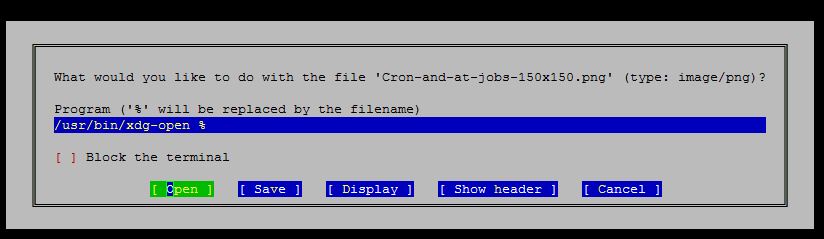
If you try to download image (or any type of) file it will show you below the GUI screen (within the terminal) with options to choose from what to do next. If you choose to save then it will download a file and keep it.

w3m
The last tool of this article to download internet-based files is w3m. w3m is a text-based www (world wide web) client. Installation steps remain same yum/apt-get install w3m
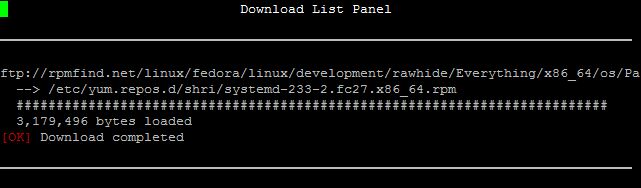
It also opens up a text-mode GUI screen like elinks and gives you interactive options to choose actions. w3m ftp://rpmf...../...86_64.rpm opens :


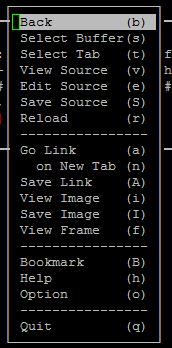
If you right-click on the terminal window (normally we don’t!!) it does show you a menu you can use to perform various actions.
You can navigate through this menu using keyboard arrow keys or even using mouse clicks. You can even use short cut keys defined for each menu item in brackets beside them.
All user interactive commands/options are shown in the lower-left corner of the terminal and choices can be submitted there only.
In all, if you are looking for a simple tool, less eye-rolling on-screen, a fast way to get the file on the server then wget is the choice you should make IMHO! Let me know which command-line tool you use for downloading internet files in comments.